How to Create and Manage Saleo User Teams using SCIM with Okta
Last updated: April 20, 2026
To set up teams with Okta you'll first need to enable the Saleo Okta app in your account to push users. See here for steps: https://help.saleo.io/articles/5029724323-how-to-configure-scim-within-saleo-s-okta-integration-network-app
The Saleo Okta app allows your organization to create and push users to Saleo, as well as organize the Teams they are in within the Saleo Portal.
You can use a group in Okta and use it to sync a team in Saleo. Any time you add users to this team in Okta, you can have that sync up to move that user to the team within Saleo.
How to Push User Teams from Okta to Saleo
First, you'll need to enable SCIM with your Okta account. See the steps above for more information.
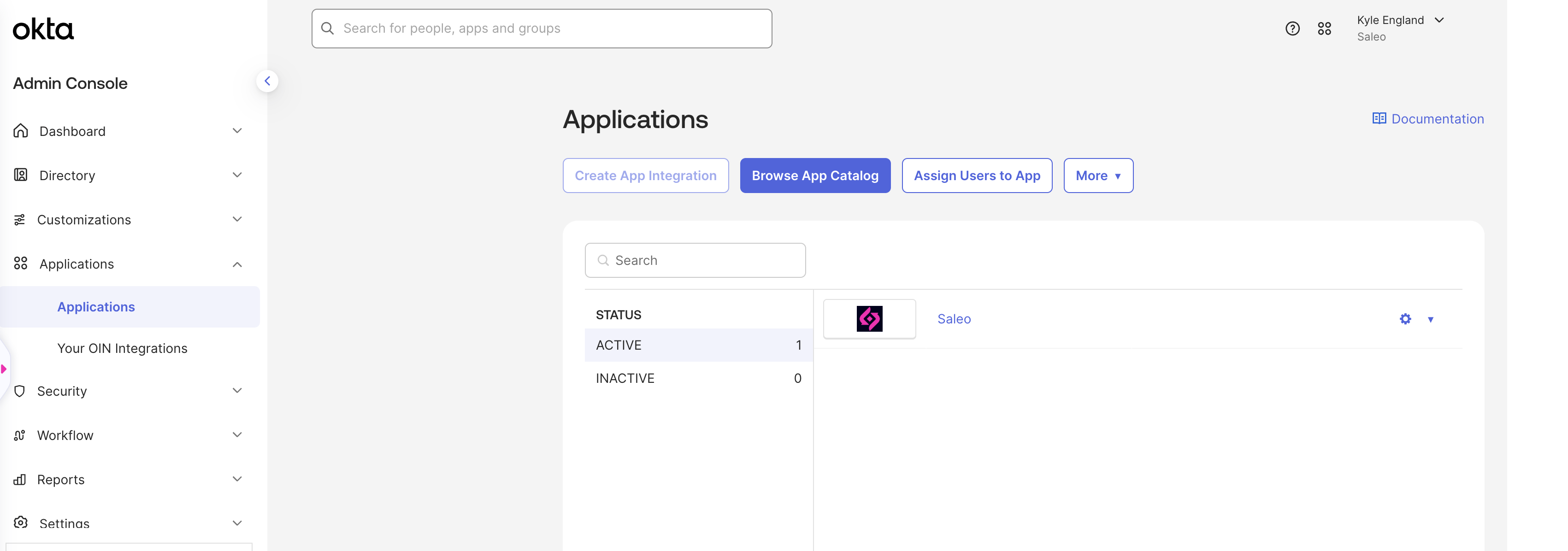
Select the Saleo app in your Okta instance to view user provisioning settings
Select Push Groups from the tabs
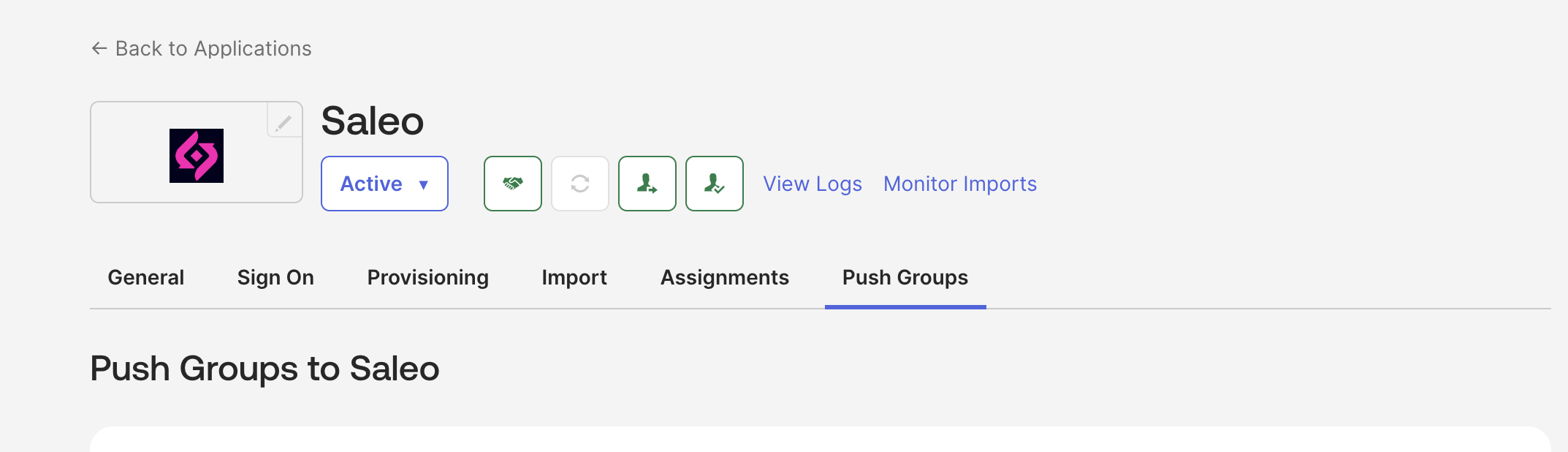
Select the Push Groups button to search for a group you want to push to Saleo. You can also find groups by rule.
Once a group is selected you can select several options:
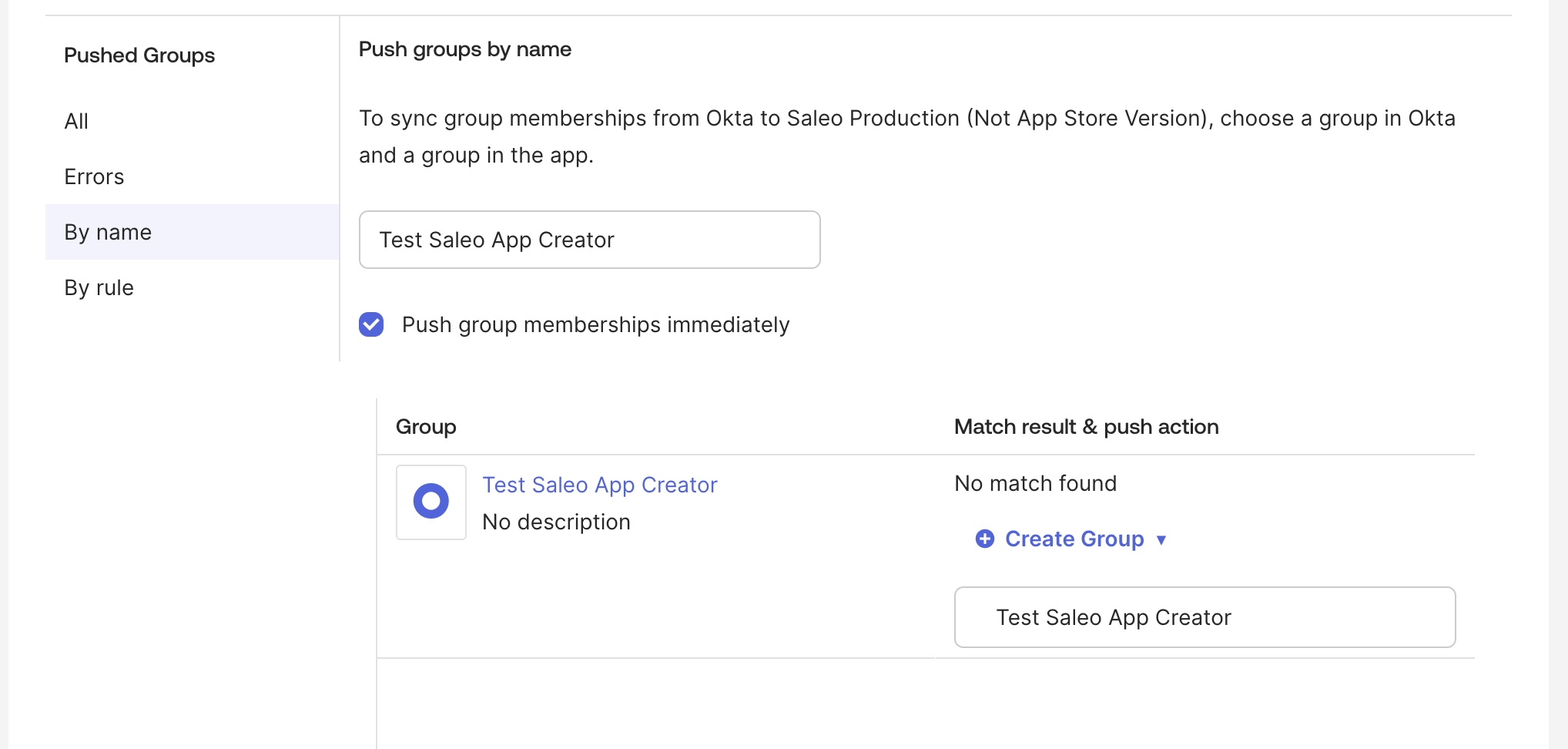
Select Push Group Memberships Immediately if you want anyone added to the group to be synced to Saleo as soon as you add them.
Select Create Group if you want to push this group to Saleo to create a new team in the Saleo Portal.
Select Link Group if you want to match this group to a preexisting Saleo team in Saleo Portal
Once the options are specified, Select Save to save your group and push to Saleo.
After taking these steps, the Group in your Okta account will push to Saleo as a user team. You can manage the membership of the synced teams directly from your Okta instance. Any Saleo user moved between teams will also sync to the Saleo Portal.
More Details on Okta Groups synced to Saleo Teams
The integration is a one way sync from Okta to Saleo. If any changes are made in Saleo they will not be pushed back to Okta. Please be sure to manage all users and teams within Okta if you are utilizing SCIM.
You can Link teams from Saleo if they were created before you enabled the Push Groups in Okta. To do so, name the group in Okta the same name as the team as it appears in Saleo. After pushing the group, Okta will join the group to the Saleo team and any future updates to this group will apply to that team. The names are not case sensitive to join but the characters must match exactly the name as it appears in the Saleo Portal.
Remember that any users you push to Saleo with the Okta SCIM are subject to your Saleo seat count.
If you have any questions or need help, please reach our to your Saleo CSM or Support!