Single Sign-On (SSO)/Okta Setup Guide
Last updated: March 24, 2025
Saleo offers Single Sign-On (SSO) capabilities, allowing users to log in with their company credentials via SAML 2.0. Saleo integrates seamlessly with Okta and other identity providers (IdP). Below are the instructions for setting up SSO in the Saleo portal.
Setting Up SSO in Saleo
Log In to Saleo:
Access your admin account via the Saleo Portal.Navigate to Settings:
Click the settings icon (⚙) on the left-hand navigation bar.Enable SAML SSO:
Check the box labeled "SAML Single Sign-On" to activate the feature.Enter Required Information:
Obtain the following details from your IdP and enter them into the Saleo settings:SAML Sign-On URL
SAML Issuer
SAML Certificate (SAML Cert)
Helpful Resources
Okta Setup for Saleo Customers
Google Users Without Okta
Add users directly in the Saleo portal.
Ensure the "Send Invitation Emails" option is unchecked.
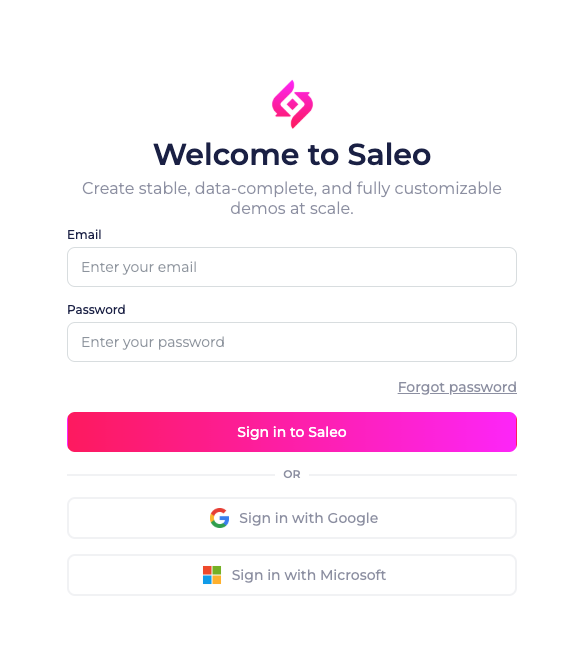
Users can log in using the Sign In with Google button on the login page.
Microsoft Users Without Okta
Add users directly in the Saleo portal.
Ensure the "Send Invitation Emails" option is unchecked.
Users can log in using the Sign In with Microsoft button on the login page.
Google Managed by Okta
Option A: Use the Saleo app in the Okta store.
Option B: Follow the steps for Google users without Okta as described above.
SAML Managed by Okta
For SAML setup via Okta, refer to the Okta + Saleo Integration Guide.