How to Configure SCIM within Saleo’s Okta Integration Network App
Last updated: February 17, 2026
Supported Features:
The Saleo SCIM Integration supports both User Provisioning (Create, Update, and Deactivate Users) and Group Provisioning (Create, Update and Delete Groups). Note that when you push a ‘Group’ in Okta to Saleo, it will become a ‘Team’ in Saleo.
Requirements:
In order to complete the Saleo SCIM configuration, a Saleo account admin in your organization must first generate a SCIM token on the Saleo Settings page https://app.platform.saleo.io/settings. They should generate this token before following the subsequent steps of the configuration. Detailed instructions for generating the SCIM access token can be found in the ‘Configuration Steps’ section below.
Saleo Configuration Steps
Before doing anything in Okta, a Saleo account admin in your organization must generate a SCIM token on the Saleo Settings page https://app.platform.saleo.io/settings.
The admin should see a button that says “Manage SCIM Access Tokens” on the Settings page. If they do not see this button, please contact Saleo Support.

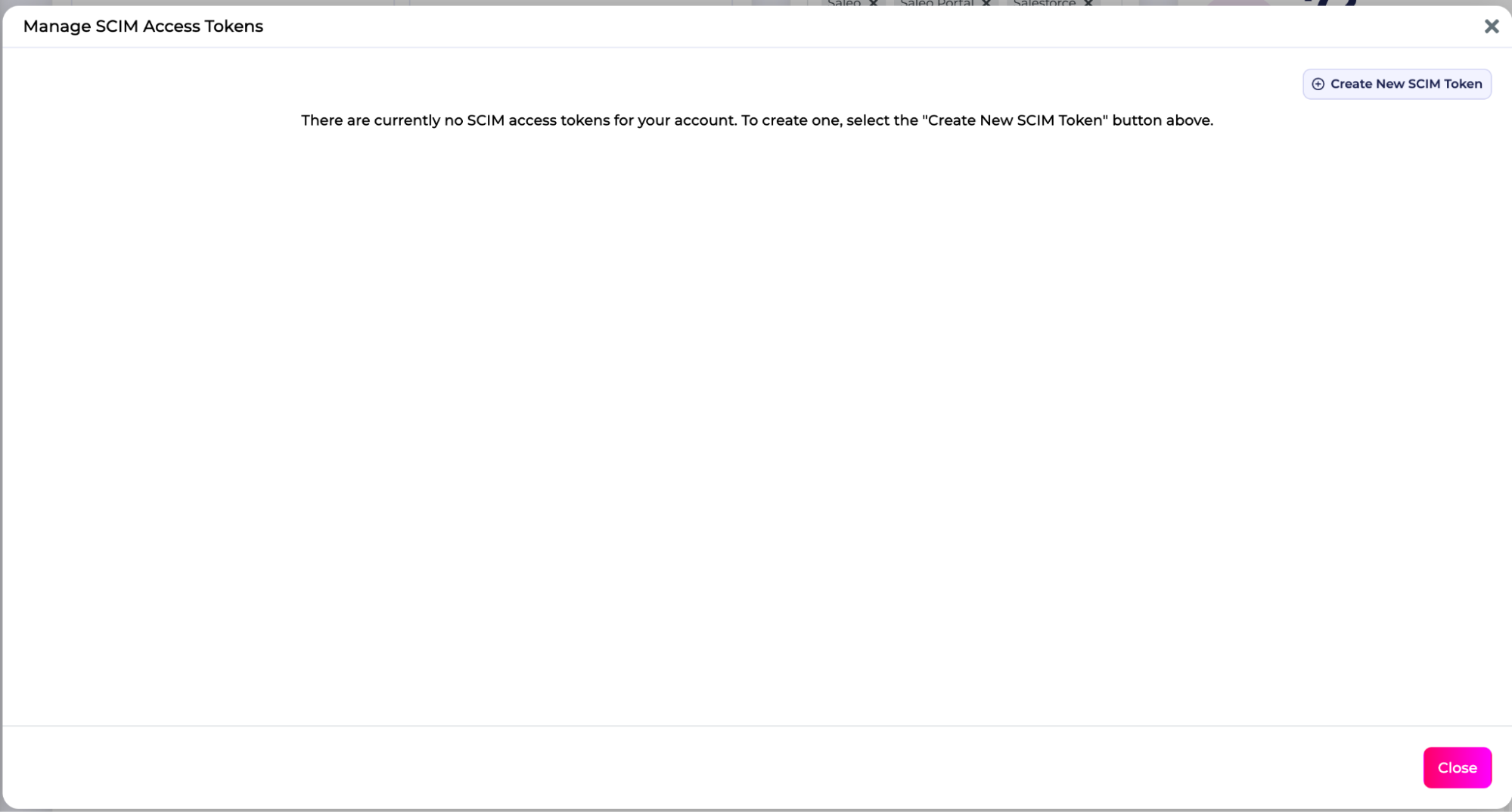
Once the admin clicks this button, a modal will appear that allows them to create and manage your organization’s SCIM tokens. To create the first token, press the “Create New SCIM Token” button at the top right of the modal. Note that these tokens never expire, but can be revoked at any time in the event you believe a key may have been compromised or if you simply need to perform routine key rotation. To revoke a token, you can simply hit “Deactivate”. Deactivating a token is irreversible and you will need to create a different token to interact with Saleo SCIM endpoints again.
Once a token has been generated, the admin should complete the remaining steps in Okta.
Okta Steps
Navigate to the Saleo app’s ‘Provisioning’ Tab and click ‘Configure API Integration’

Select ‘Enable API integration’

Use the token you generated to populate the API Token field and click ‘Test API Credentials’. If the test is successful, click ‘Save’.

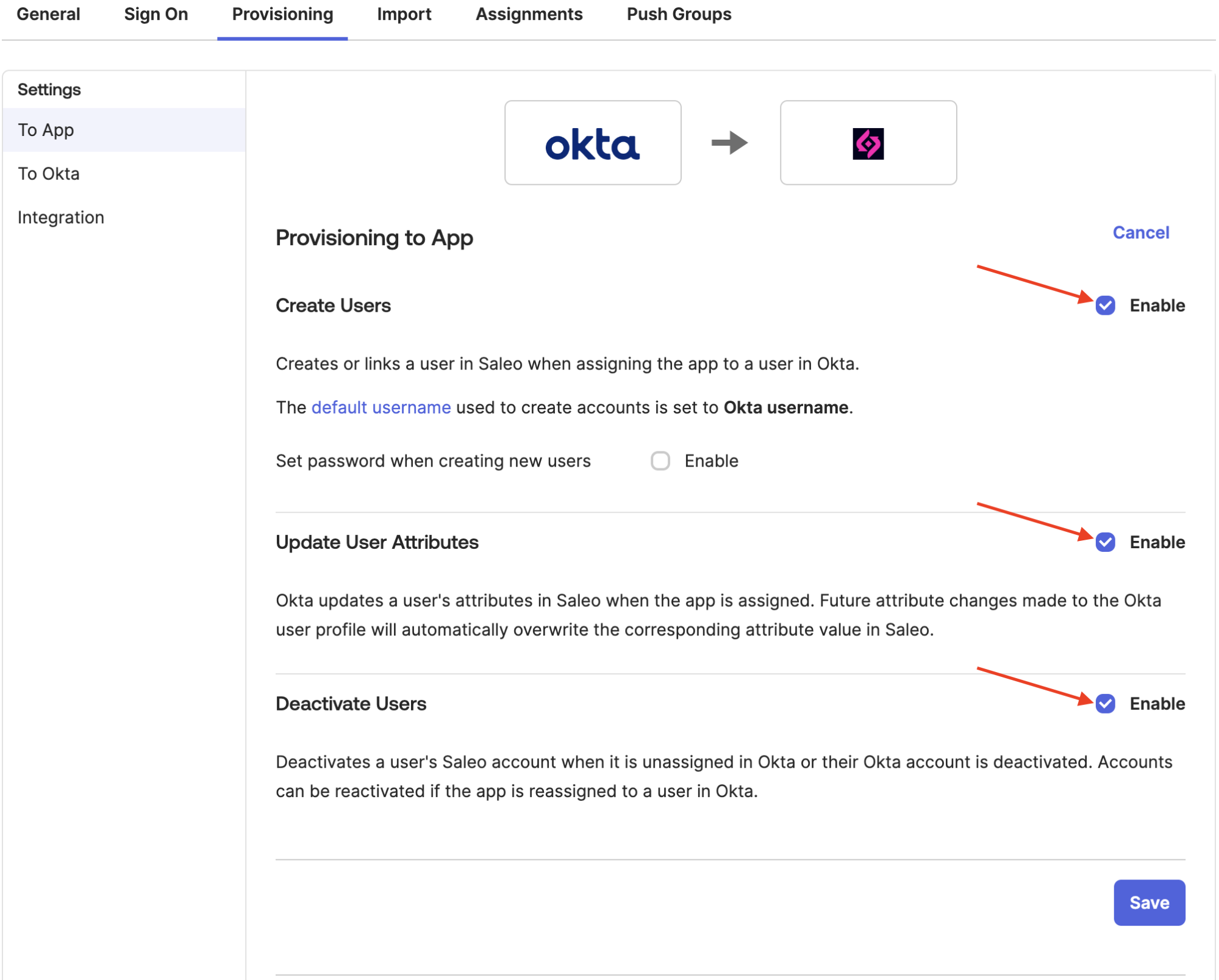
Next, go to ‘Provisioning > To App’ and enable the checked boxes for ‘Create Users’, ‘Update User Attributes’ and ‘Deactivate Users’ and click ‘Save’
Attributes and Mapping:
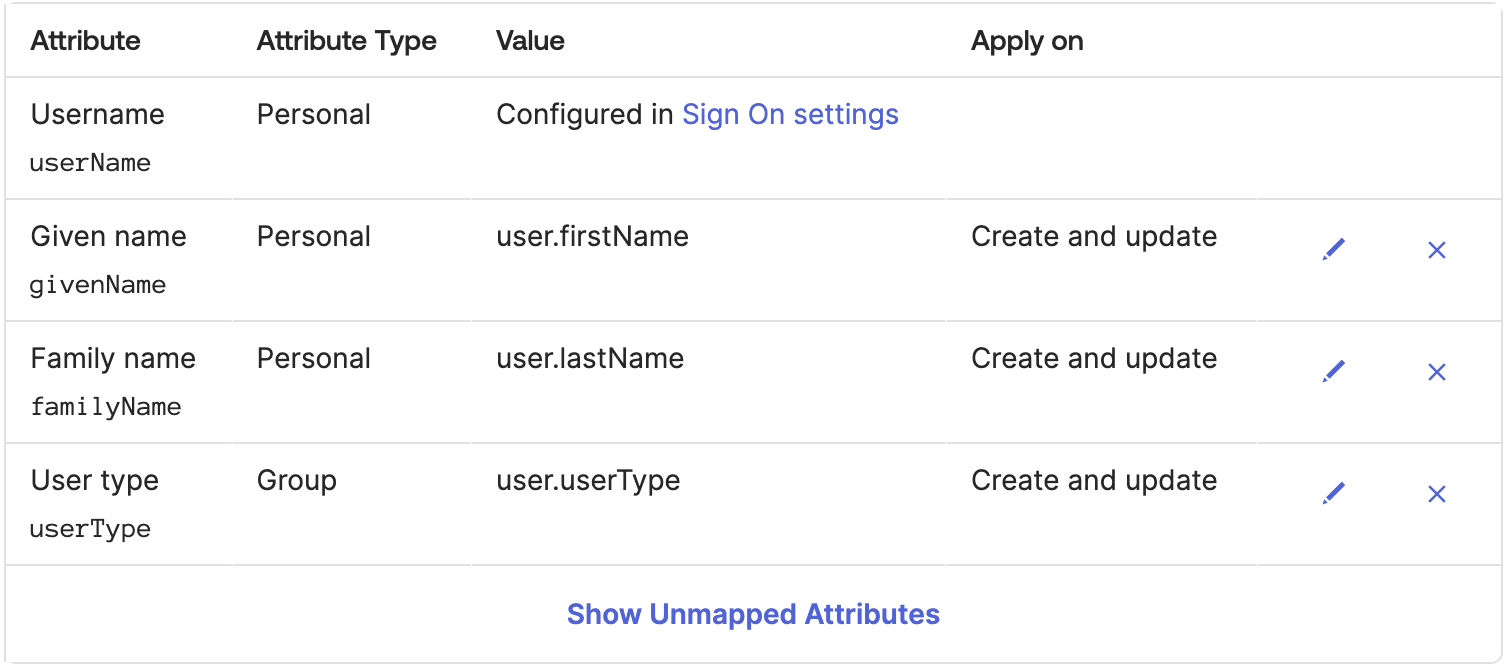
Then scroll down to the configure the ‘Saleo SCIM Attribute Mappings’
Please ensure they match the following. Do not include any attribute that is not pictured below. You will likely need to remove many of the attributes Okta includes by default. You can map the userType attribute however best fits your organization’s existing configuration and preferences. Regardless of how you choose to determine it, the userType’s value for each user MUST be one of the same enum values as the seatType in the SAML configuration: “admin” (Admin), “user” (Demo Creator) or “view” (Sales Seat).